◈ COMMANDER'S FIELD MANUAL
ELITE TACTICAL NETWORK — COMPLETE USAGE GUIDE
What is ETN?
The Elite Tactical Network (ETN) is a live BGS (Background Simulation) and Powerplay intelligence portal for Elite Dangerous player squadrons. It connects directly to the EDDN (Elite Dangerous Data Network — the community-driven network where players automatically upload in-game telemetry when running tools like EDMC or the ETN companion app) and transforms that raw data stream into actionable squadron intelligence.
Faction influence, system states, and CMDR activity update in real-time as players upload telemetry across the galaxy.
Each squadron has its own isolated dashboard. Your data, your CMDRs, your systems — completely private.
Built-in AI can brief you on any system, generate a strategy for today's tick, or create a personalised action plan for a CMDR.
Automated tick reports, rival CMDR alerts, and slash commands so your whole squadron stays informed without opening the portal.
First-Time Setup
- 1 Enter your in-game minor faction name in the setup wizard — the exact spelling as it appears in Elite Dangerous (Right Panel → Reputation tab). This single name is what the portal filters the live data stream against.
- 2 Install the companion app (click ⬡ COMPANION in the header) and run it alongside Elite Dangerous. This is what sends your CMDRs' activity to the portal in real time — without it, you'll only see data other players upload.
- 3 Add a free AI key under Settings → AI Keys (Groq is free and takes 2 minutes to set up). Without it, system analysis, daily briefings, and the BGS optimizer won't work.
- 4 Register a CMDR account (👤 CMDR LOGIN in the header) so your activity is tracked under your name, you earn medals, and you can receive orders and messages from your leader.
- 5 Connect your Discord server (Settings → Discord) to get automated tick reports and alerts without leaving Discord. Takes under 5 minutes.
When a new tenant is provisioned, the portal runs a setup wizard to configure the faction filter. This is the single most important step — get the faction name wrong and the portal sees nothing.
Step 1 — Enter Your Faction Name
- In the setup wizard, enter the exact in-game faction name (e.g.
Chimera Collective, not "Chimera Squadron") - Optionally enter your Inara squadron name — this pulls roster data, kill count, and stats from Inara.cz
- Set your PMF HQ system — the faction's home system. Distance badges on every hex card are measured from here
- Click SAVE & ACTIVATE — the portal immediately begins filtering the live EDDN stream for your faction
After saving, the portal queries Spansh to seed your initial system list. Systems appear on the grid within a minute as EDDN telemetry arrives, or faster if you click ↻ RESEED.
Tenant Isolation
Leadership Cipher
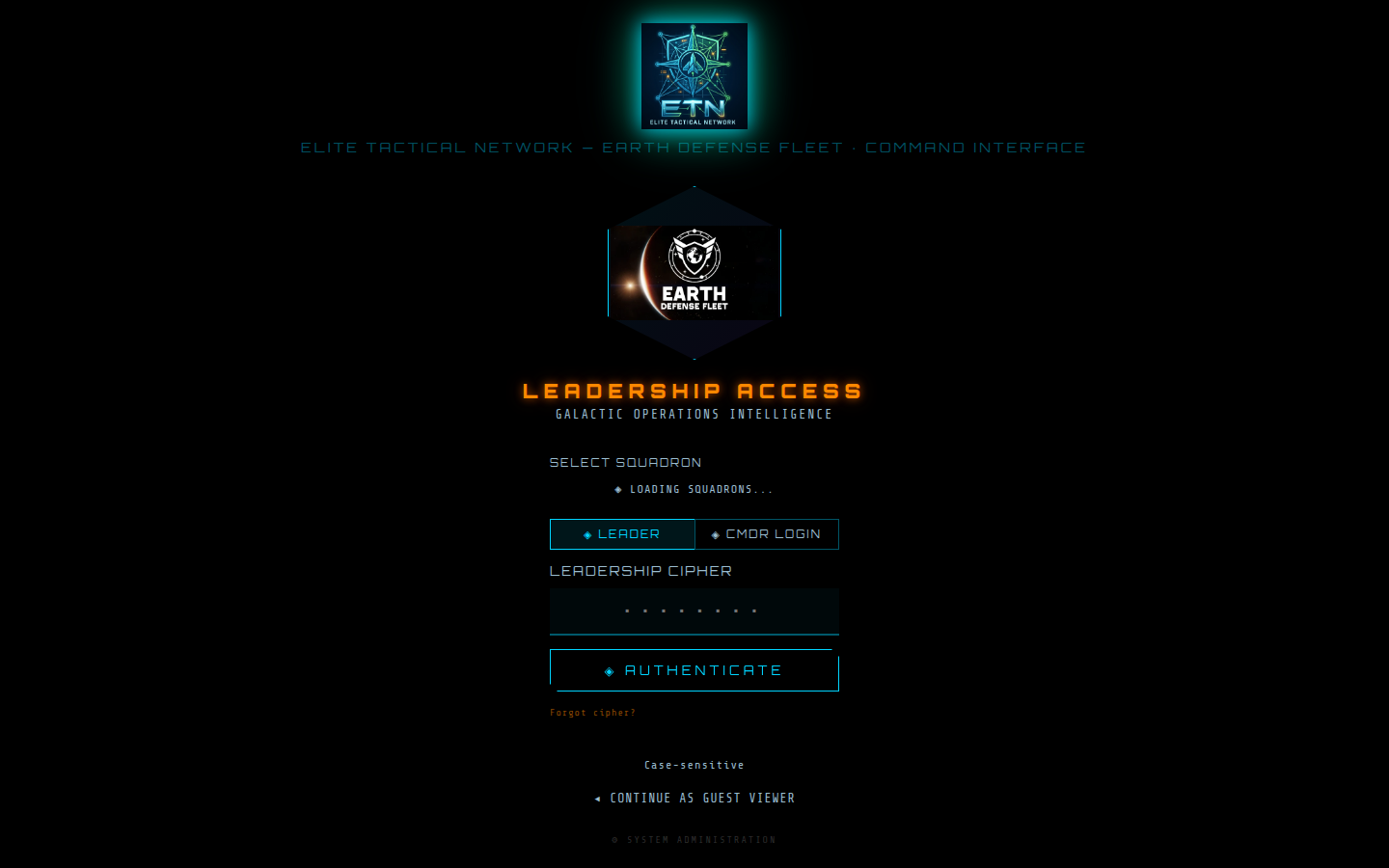
The Leadership tab and Settings are protected by a leadership cipher — a password set during provisioning. This separates leader-only controls (rosters, settings, strategy tools) from general member access. Members with registered CMDR accounts can see all operational data but cannot change configuration.
Logging In
The portal has three access levels:
| Level | How to access | What you can do |
|---|---|---|
| Guest | Click "Access as Guest" on the login screen | View live systems, Intel, AI queries, Squadron overview — no orders, no personal optimizer |
| CMDR Account | Register/login via 👤 CMDR LOGIN in the header | Everything guest can do, plus: Orders, personal Optimizer, custom views, themes, inbox |
| Leader | Enter the leadership cipher in the Leadership tab or the ⊕ LEADER header button | Full access — settings, roster, dispatch, rival monitor, emergency shutdown, system removal |
Data Sources
The portal combines several data streams. Understanding what each one provides helps you interpret what you see and why some data may be more current than others.
| Source | What it provides | Update frequency |
|---|---|---|
| EDDN | Live faction influence, system states, CMDR FSD jumps, docking events, market data — from players uploading journals in real time | Real-time — seconds |
| Companion App | Your CMDRs' activity: missions completed, bounties, trade profit, exploration data. Also keeps the portal's BGS tally up to date | Real-time as CMDRs play |
| BGS-Tally | Detailed per-system mission and activity counts, cross-referenced with your faction's systems. Powers the BGS Intel table | Per session submit |
| Inara | Squadron roster, member ranks, fleet carrier owners. Seeded at startup and refreshed periodically | Hours — not real-time |
| Spansh | Initial system list — populates your tracked systems at startup so you're not starting cold | Manual reseed |
| Frontier (cAPI) | Live CMDR location and status for authenticated members, market prices at docked stations, fleet carrier itineraries | ~3 minutes for location |
Interface Overview
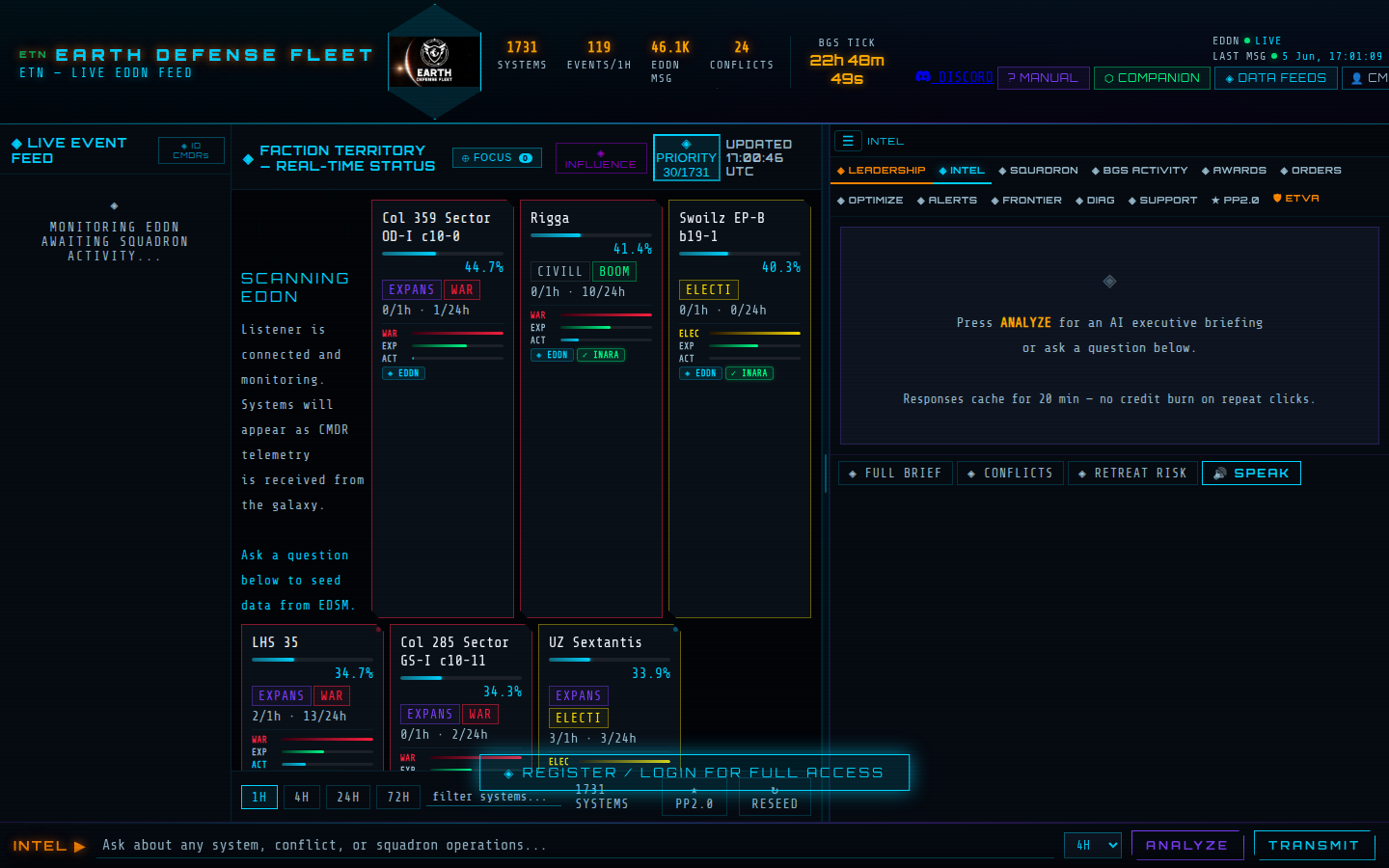
The desktop layout is a three-column grid. On mobile it collapses to a vertical stack with a bottom navigation bar.
for your faction's systems
Click any card to open Intel.
alerts, orders, powerplay
The divider between the center and right panels is draggable — click and drag the thin handle to resize the right panel to your preference. The setting persists per browser.
Header Bar
Stats Row
| Stat | Meaning |
|---|---|
| SYSTEMS | Number of systems currently tracked on your grid |
| EVENTS/1H | EDDN events for your faction in the last hour. Click to open the Live Feed. |
| EDDN MSG | Total raw EDDN messages received this session (all factions, not just yours) |
| CONFLICTS | Systems in active War or Election. Click to toggle conflict filter — grid highlights only conflicted systems. |
BGS Tick Clock
The countdown shows time until the next BGS tick, along with a confidence indicator. The tick fires at approx 07:00 UTC daily but can shift — the portal detects tick confirmation from EDDN and updates the estimate accordingly. When the tick lands, you'll see new influence values cascade across all your system cards.
Status Dots
| Dot | Green | Amber | Red |
|---|---|---|---|
| EDDN | Connected, receiving events | Connecting or reconnecting | Disconnected |
| AI | AI provider ready | — | No AI key configured |
| LAST MSG | Recent EDDN message | Last message >5 min ago | — |
| TICK | Tick recently confirmed | Estimate unconfirmed | — |
Header Buttons
| Button | What it does |
|---|---|
| LEADER (hamburger) | Opens the leader-only action menu — only visible after cipher authentication |
| DISCORD | Link to the ETN community Discord server |
| ⬡ COMPANION | Download link and setup guide for the companion app |
| ◈ DATA FEEDS | Overview of connected data sources (EDDN, companion, BGS-Tally, Inara, Spansh) |
| 👤 CMDR LOGIN | Open the CMDR account modal — login, register, profile, themes |
| SWITCH VIEW | Toggle between desktop and mobile layouts |
| 🔔 | Request browser push notifications for in-portal alerts |
| Game Mode (controller icon) | Pauses all animations and reduces screen refresh rate to save CPU/GPU. Alerts, tick events, and audio cues still fire. Toggle off to restore full speed. |
Live Event Feed
The left panel shows real-time EDDN events for your tracked systems. Each entry shows the system name, current influence, active states, and time of the event. Entries flash briefly when they arrive.
Clicking any event in the feed selects that system and opens its detail in the Intel tab on the right.
◈ ID CMDRs Button
In the top-right corner of the feed panel is a small ◈ ID CMDRs button. This opens the CMDR Intel panel — a full list of every EDDN uploader hash seen in your systems, with correlation confidence and any resolved CMDR names. This is your adversary intelligence view. See the CMDR Intel section for full detail.
System Grid
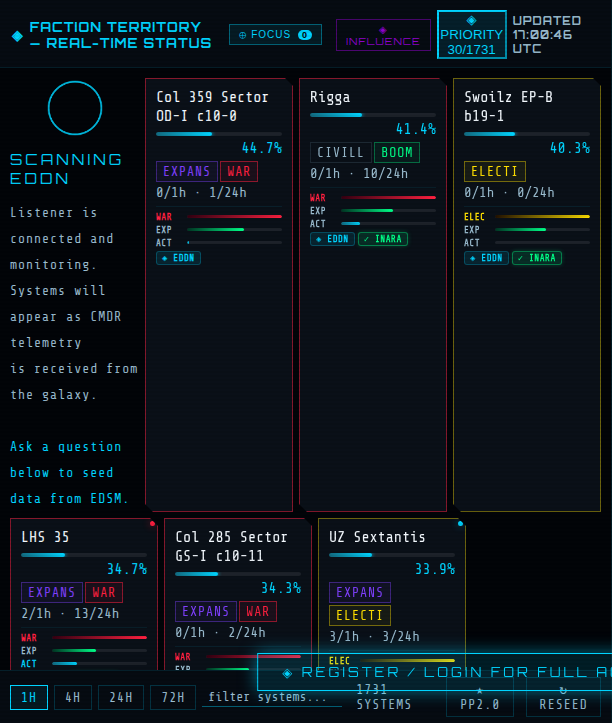
The center panel shows all your faction's tracked systems as hex cards — compact tiles, one per system. The card format lets you scan your entire territory at a glance and immediately spot influence drops, active conflicts, or unusual pilot activity without clicking into each system individually. Systems update live — influence bars animate, state tags appear/disappear, and the hot-dot (pulsing dot in the card's corner) lights up whenever new EDDN data arrives for that system.
Reading a Hex Card
| Element | Meaning |
|---|---|
| System name (top) | Click the name to copy it to clipboard |
| ⭐ (top-right) | Bookmark/favourite this system — press ★ FAV in the time bar to show only bookmarked systems |
| 📌 (second from right) | Pin this system's Fleet Carrier to track its position |
| Influence % + bar | Your faction's current influence. Green = high (>40%), Cyan = mid, Red = low (<15%) |
| State tags | WAR, ELECTION, BOOM, EXPANSION, RETREAT etc. Colour-coded: Red=conflict, Yellow=election, Green=positive |
| Hot dot (top-right corner) | Pulsing = system had an EDDN event in the last hour. Red pulse = currently in war |
| Health bars (bottom) | Three micro-bars showing relative influence for your faction (top), the leading rival (middle), and third faction (bottom) — at a glance competition picture |
| EDDN/EDSM/Spansh/Inara badges | Indicates which data source most recently updated this system |
| PP badge (PP2.0 mode) | Shows controlling Power, system state (Stronghold/Fortified/Exploited/Contested/Acquisition), and Steadfastness bar |
| BGS objective badge | RAISE / LOWER / MAINTAIN / EXPAND / RETREAT badge when your leader has set an objective for this system |
Border Colours
The card border gives you a quick visual threat assessment: Red = active War, Yellow = Election, Green = Boom state, Gold = bookmarked/favourite. In PP2.0 mode the left border is coloured by the controlling Power's faction colour.
Grid Views
Three display modes are available in the center panel toolbar:
| Mode | How to activate | Best for |
|---|---|---|
| Standard Grid | Default | Overview of all systems — most common view |
| Focus Mode ⊕ FOCUS | Click ⊕ FOCUS button in panel header | Shows only systems with active objectives, conflicts, or recent tally data. Sorted by priority. Click the star on any hex to add it to Focus. |
| Influence Board ◈ INFLUENCE | Click ◈ INFLUENCE button | All factions across all systems in one ranked list — see who controls what at a glance. Click any system header to jump to its Intel detail. |
Priority Mode
The ◈ PRIORITY button (also in the panel header) filters the grid to your top 30 most critical systems by threat level and CMDR traffic volume. This is the fastest way to identify where your squadron needs to focus immediately.
PP2.0 Overlay
Click ★ PP2.0 in the time filter bar to overlay Powerplay data on every hex card. The BGS health bars are replaced with Powerplay state badges and a Steadfastness bar. Left borders are colour-coded by the controlling Power. This mode is most useful if your squadron has a pledged Power set in Settings → Branding.
Filters & Search
| Control | What it does |
|---|---|
| 1H / 4H / 24H / 72H | Time filter — shows only systems that had EDDN activity in the selected window. "24H" is the most useful for a daily BGS review. |
| filter systems… | Type to search by system name. Instant, client-side — no network call. |
| ★ FAV | Show only bookmarked systems (appears after you star at least one card) |
| ↻ RESEED | Force a fresh query to Spansh to re-seed the system list. Use this if a newly colonised system isn't appearing. |
Intel Tab
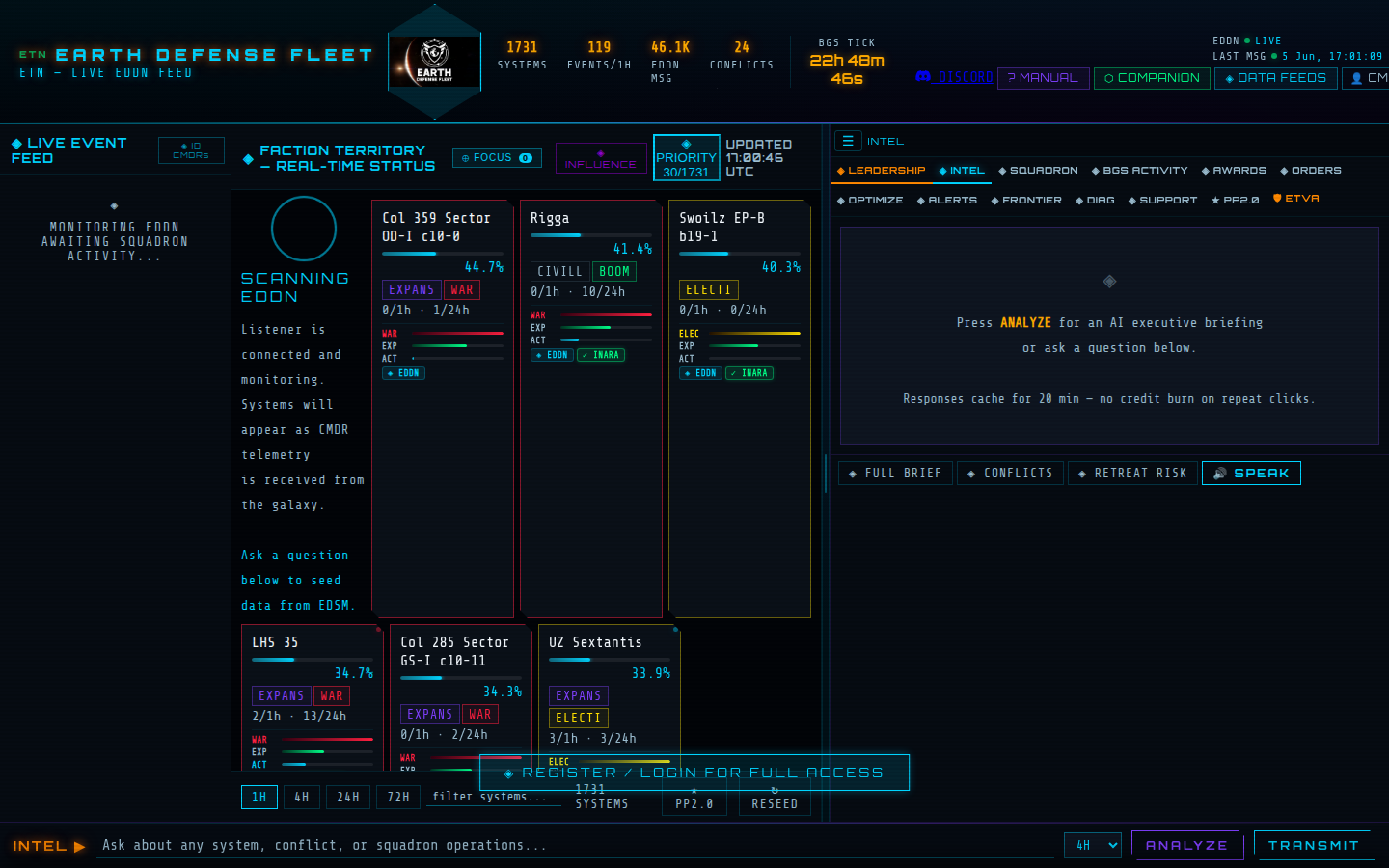
Clicking any system card or feed event opens the Intel tab with full detail for that system. This is the primary analytical view.
System Detail — What You See
| Section | What it shows |
|---|---|
| System name + EDGIS button | System name banner. Click ⬡ EDGIS MAP to open an interactive 3D stellar cartography map of this system in a modal overlay. |
| Faction rows | All factions present in this system, sorted by influence. Your faction has an orange left border. Hover to see details. |
| Influence bar | Visual influence gauge per faction — bar colour mirrors the hex card (green/cyan/red for high/mid/low influence) |
| State tags | Active and pending states for each faction (WAR, BOOM, RETREAT, etc.) |
| Objective badge | RAISE/LOWER/MAINTAIN/EXPAND/RETREAT badge if your leader has set an objective. Click ◈ SET to configure one. |
| Pending mission count | (+N pending) tag showing live unresolved missions in the pipeline for this faction |
| Conflict banner | When in WAR or ELECTION, a detailed conflict block shows: combat bond scores, estimated win%, days remaining, and what actions help |
| System metrics | Population, economy type, government, security level, last update time |
| Powerplay block | If PP data exists: controlling Power, system state, Steadfastness %, Steadfastness trend (↑↓→ with 6h delta), Tug-of-War progress bar |
| Body tree | Stars, planets, moons, stations, and market data — pulled from EDDN. Click VIEW MARKET on a station to see current commodity prices. |
| Distance badges | Distance to your HQ system, your personal anchor, and the nearest carrier (if known) |
| System notes | Free-text notes visible to all CMDRs. Click ✎ EDIT NOTE to add one. Amber text, persists until manually cleared. |
Setting Objectives
Leaders and senior commanders can click ◈ SET next to any faction row to open the objective picker. Choose from RAISE / LOWER / MAINTAIN / EXPAND / RETREAT, optionally add a target influence % and notes. The badge appears on both the faction row and the hex card in the grid.
CMDR Intel Panel (◈ ID CMDRs)
The CMDR Intel panel (accessed from the Live Feed header button) shows every uploader hash seen in your space. The portal's hash correlator attempts to resolve each hash to a real CMDR name through three tiers:
- Hash matching — MD5/SHA-1 patterns from known CMDR names
- Authenticated hints — cAPI-verified CMDRs who are registered in the portal
- Portal activity — cross-referencing journal uploads and BGS-Tally submissions
Each profile card shows: CMDR name (or hash if unresolved), confidence level, last-seen system, ship class, PP pledge, PP rank, BGS faction, and the systems they've been detected in. VERIFIED means cAPI-confirmed identity.
Squadron Tab
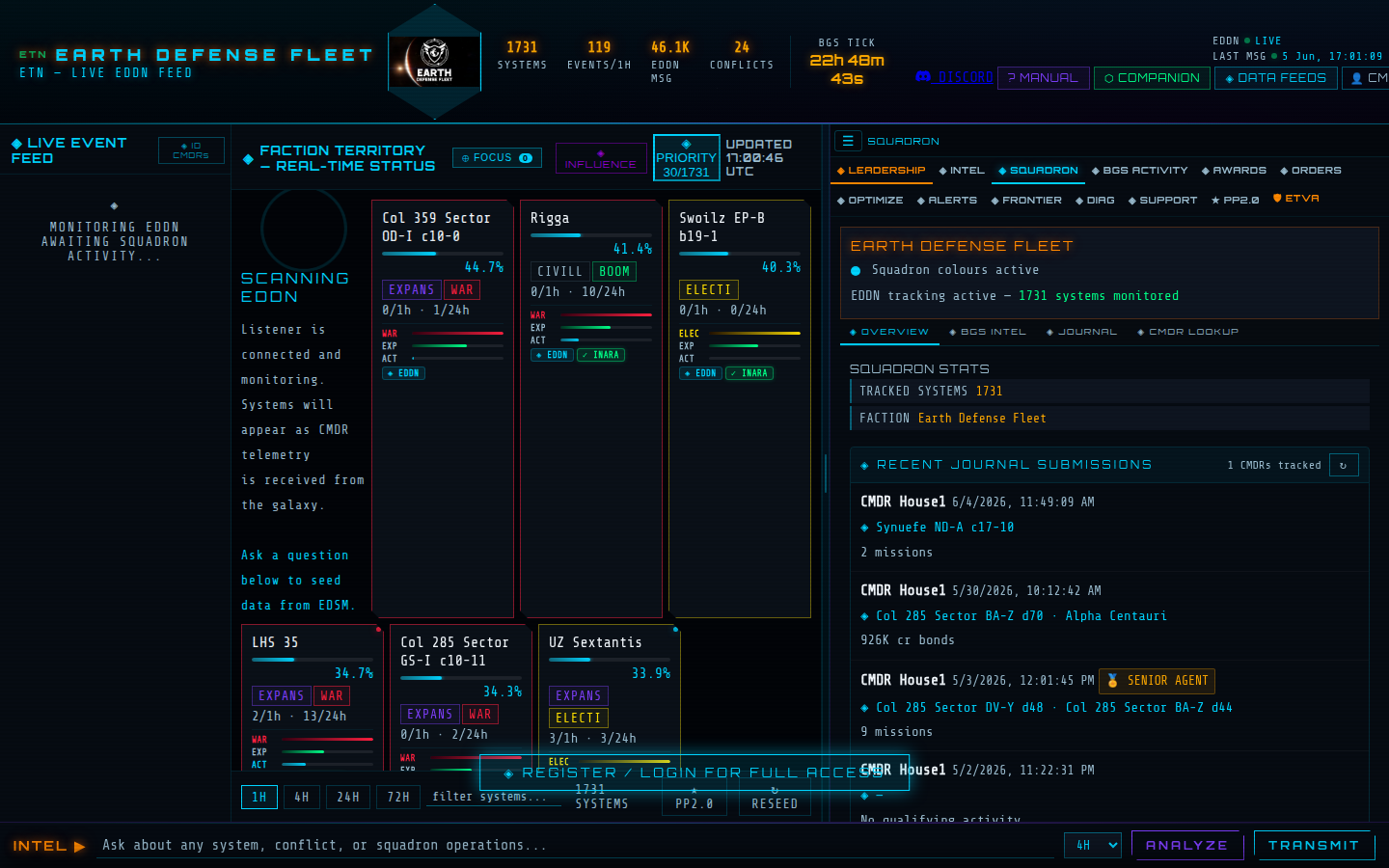
The Squadron tab has four sub-sections accessible via the sub-navigation bar below the tabs.
Overview
Shows squadron-level stats pulled from Inara (member count, ship classes, combat rank distribution) and recent journal submissions from your CMDRs. Each submission entry shows the CMDR name, systems worked, activity types (missions, bounties, trade), and any new medals earned.
BGS Intel
The BGS Intel table is the most operationally valuable section of the portal. It shows, per system and per faction, the accumulated BGS work done by your CMDRs since the last tick: mission count, bounties redeemed, combat bonds, trade profit, exploration data submitted.
Below the tally table is the Hostile CMDR Intel panel — high-confidence rivals detected in your systems via hash correlation. This shows CMDRs who are likely working against your faction based on EDDN activity patterns.
Journal Submission
CMDRs can manually upload their Elite Dangerous journal file here for a one-time AI analysis. The portal reads the last 24 hours of the journal, calculates what activities the CMDR did, which systems they worked, and outputs a personalised report with medals earned. Limit: one AI analysis per CMDR per 12 hours.
Journal location: %USERPROFILE%\Saved Games\Frontier Developments\Elite Dangerous — pick the newest .log file.
CMDR Lookup
Search for any registered CMDR by name. Shows their rank, role, last activity, registered systems, and any medals. Useful for leaders checking on specific squadron members.
BGS Activity Tab
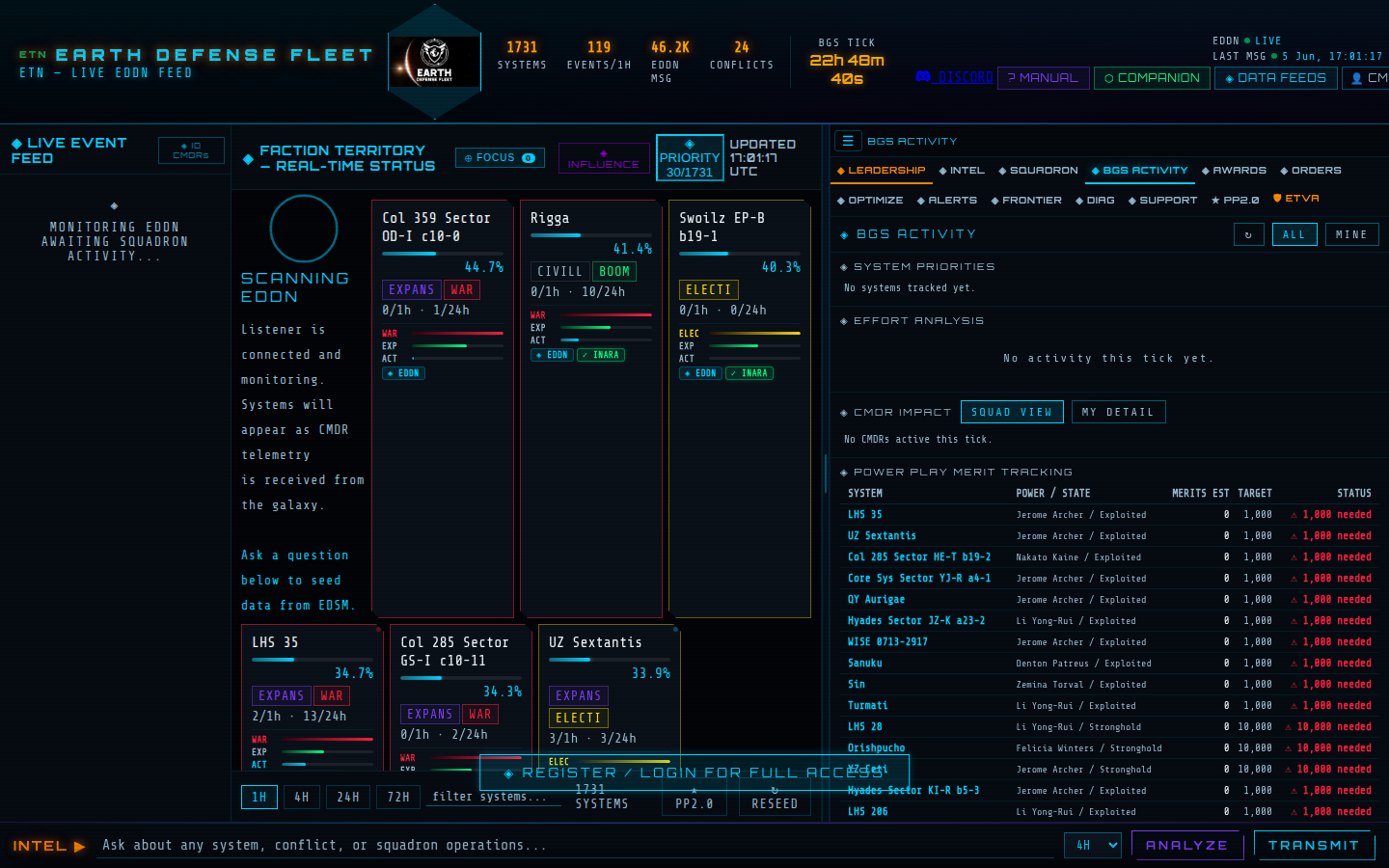
A live scrolling log of BGS-relevant EDDN events specifically for your faction's systems. More granular than the Left Panel feed — shows full event detail including faction name, influence delta, and event type.
Filters
| Filter | Events shown |
|---|---|
| ALL | Every BGS event across all activity types |
| NAV | Navigation — FSD jumps, docking, hyperspace entries |
| MSN | Missions accepted, completed, failed, abandoned |
| CBT | Combat — bounties, combat bonds, murder events |
| TRD | Trade — market buys/sells, cargo events |
The ⏸ PAUSE button freezes the log at its current position — useful when reviewing a stream of events without them scrolling away.
Awards / Commendations Tab
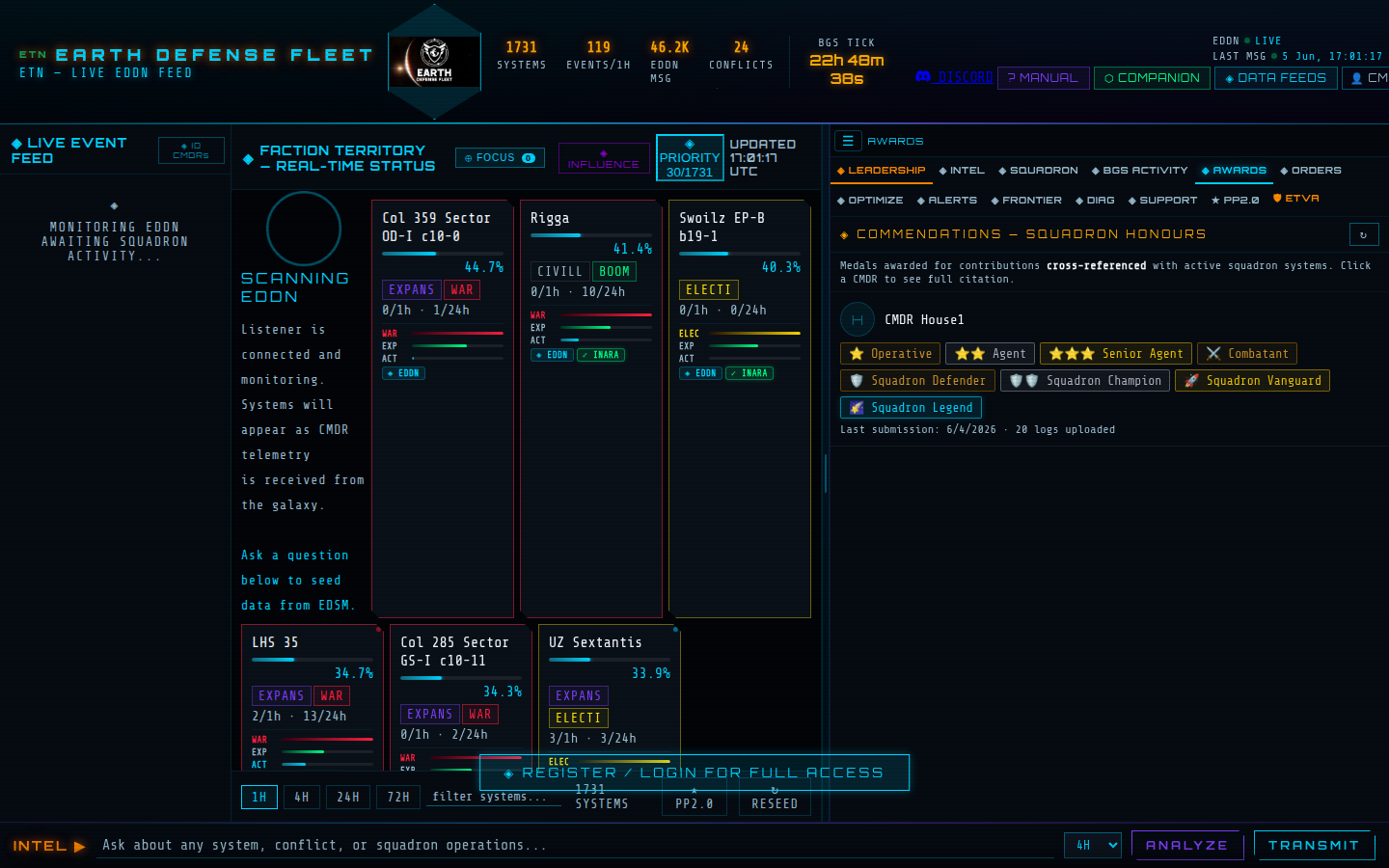
Lists all medals awarded to CMDRs who have submitted journal logs. Medals are awarded automatically when a CMDR's BGS activity in your faction's systems crosses defined thresholds.
Click any CMDR's name or medal badge to open a full citation modal showing the medal name, category, description, the exact stat that triggered the award, and the submission count.
| Category | Tier 1 | Tier 2 | Tier 3 | Tier 4 |
|---|---|---|---|---|
| Missions | Operative (1 mission) | Agent (10) | Senior Agent (50) | Handler (200) |
| Bounty vouchers | Rookie Hunter (any) | Vigilante (5M cr) | Marshal (25M cr) | Sheriff (100M cr) |
| Combat bonds | Combatant (any) | Veteran (10M cr) | Elite Operative (50M cr) | Knight (200M cr) |
| Trade profit | Merchant (any) | Trader (10M cr) | Tycoon (50M cr) | Economic Advisor (200M cr) |
| Exploration data | Scout (any) | Pathfinder (10M cr) | Pioneer (50M cr) | Cartographer (200M cr) |
| Systems coverage | Sq. Defender (3+ systems) | Sq. Champion (10+ systems) | — | — |
| Activity breadth | Sq. Vanguard (3+ activity types) | Sq. Legend (4+ types in 5+ systems) | — | — |
Medal Tiers
| Tier | Display | What it represents |
|---|---|---|
| Bronze | Bronze border | First-time contribution milestones |
| Silver | Silver border | Sustained contribution over multiple sessions |
| Gold | Gold border + glow | Top-tier BGS contribution across your faction's territory |
| Elite | Cyan border + glow | Exceptional, rare accomplishment |
Orders Tab
Leaders and senior commanders can issue standing orders to the squadron from this tab. Each order specifies a system, an action type, a priority, and optional notes.
Creating an Order (Leaders / Senior Commanders)
- In the ISSUE NEW ORDER panel, choose who it's assigned to (All, or a specific CMDR)
- Set the Priority (Normal / High / Critical)
- Enter the System name and select the Action type (Missions, Bounty Hunting, Trade, Exploration, Combat Bonds, etc.)
- Add specific instructions in the notes field
- Click ◈ ISSUE ORDER
Issued orders appear in the list for all logged-in CMDRs. When a CMDR has completed the work, they can mark the order as reviewed. Orders greyed out have been superseded or completed.
Optimize Tab — Personal Action Plan
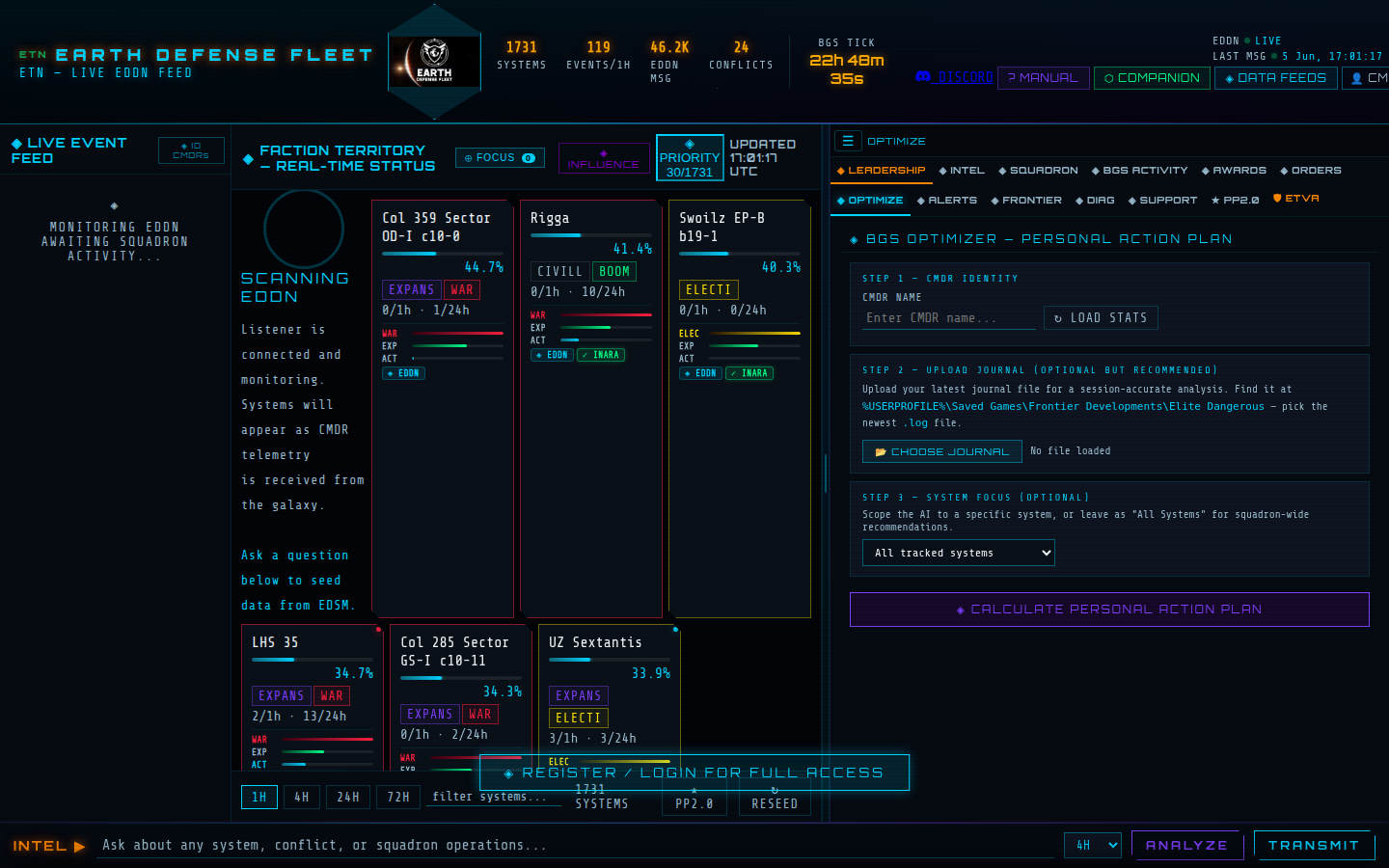
The BGS Optimizer generates an AI-powered personal action plan for a specific CMDR, cross-referenced with the current state of your squadron's systems.
- Step 1: Enter your CMDR name and click ↻ LOAD STATS — pulls your activity history from the server
- Step 2 (optional): Upload your latest Elite Dangerous journal file for session-accurate analysis. More data = more precise recommendations.
- Step 3 (optional): Choose a specific system to focus on, or leave as "All tracked systems" for squadron-wide recommendations
- Click ◈ CALCULATE PERSONAL ACTION PLAN
The output tells you: which systems need your specific activity type most, which actions give the highest BGS efficiency relative to your usual playstyle, and where the greatest threat exists right now. The recommendation ranks systems by urgency — highest efficiency work first.
Alerts Tab
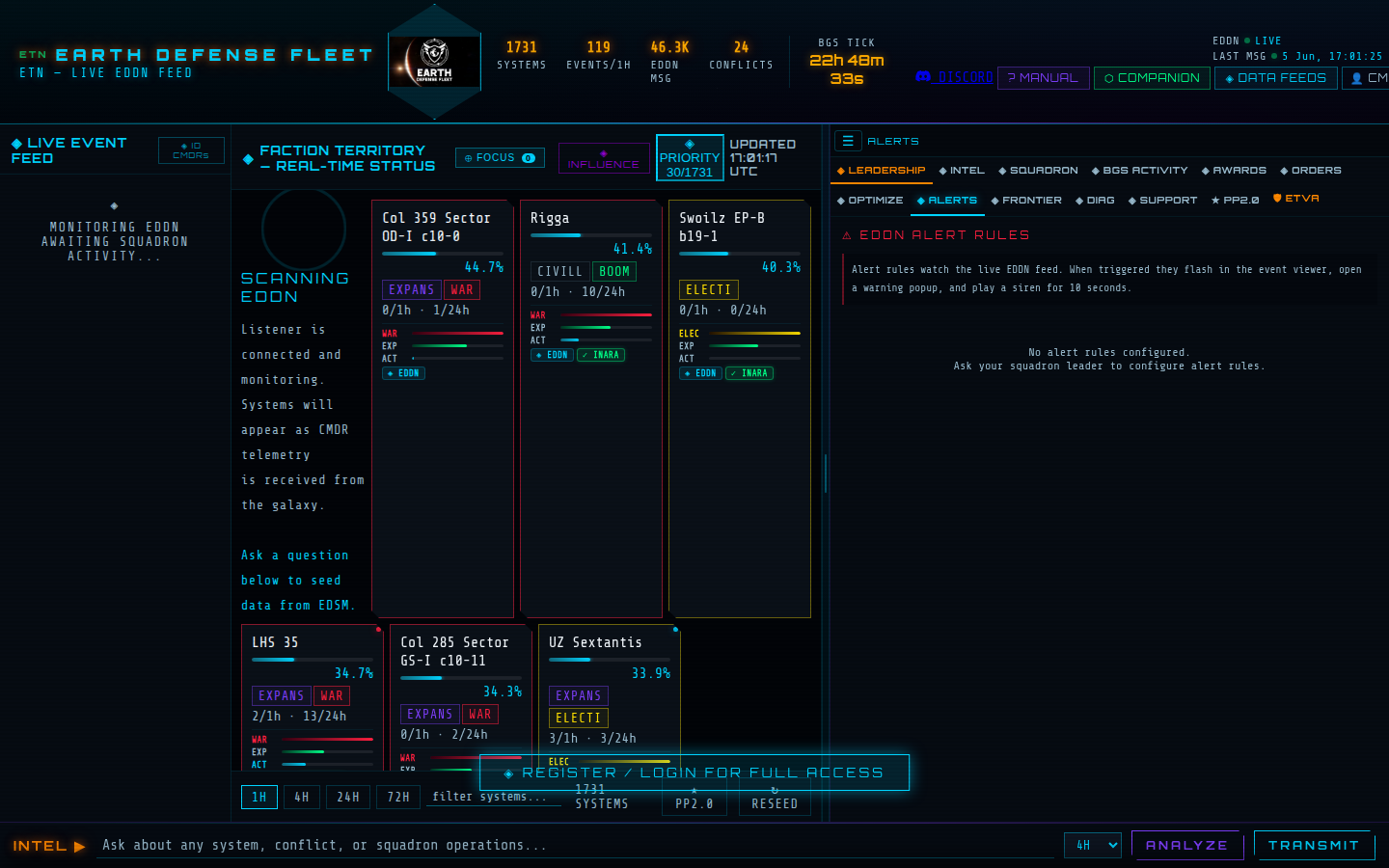
Alert rules watch the live EDDN stream. When triggered, they flash in the event log, open a full-screen warning popup, and play a siren sound for 10 seconds. The popup auto-closes after a countdown but can be dismissed early.
Alert Types
| Alert Type | Trigger condition |
|---|---|
| Jump Spike | N FSD jumps into the same system within M minutes — indicates coordinated CMDR traffic |
| Activity Spike | N total events in a system within M minutes — unusual activity burst |
| Conflict Detected | War or Election state appears in any of your tracked systems |
| Influence Low | Your faction's influence drops below a defined % threshold in any system |
| Big Influence Change | A single tick update changes influence by more than X% — could indicate a surge or sabotage |
| Rival Surge | A rival faction crosses a defined influence % in a system you share |
| Coordinated Activity | N different unique CMDRs seen in the same system within M minutes — potential organised opposition |
| New System | Your faction is detected in a system it has never been tracked in — expansion or new colony |
| PP Snipe | A Powerplay state change in one of your systems confirmed by 2+ independent CMDRs |
| PP Threat | Your Power's control percentage in a system drops below a set threshold |
| Foreign Carrier | An unknown Fleet Carrier jumps into one of your controlled systems |
Click + ADD RULE, select the type, fill in the parameters, and give it an optional name. Rules can be toggled ON/OFF individually without deleting them.
PP2.0 Tab — Powerplay
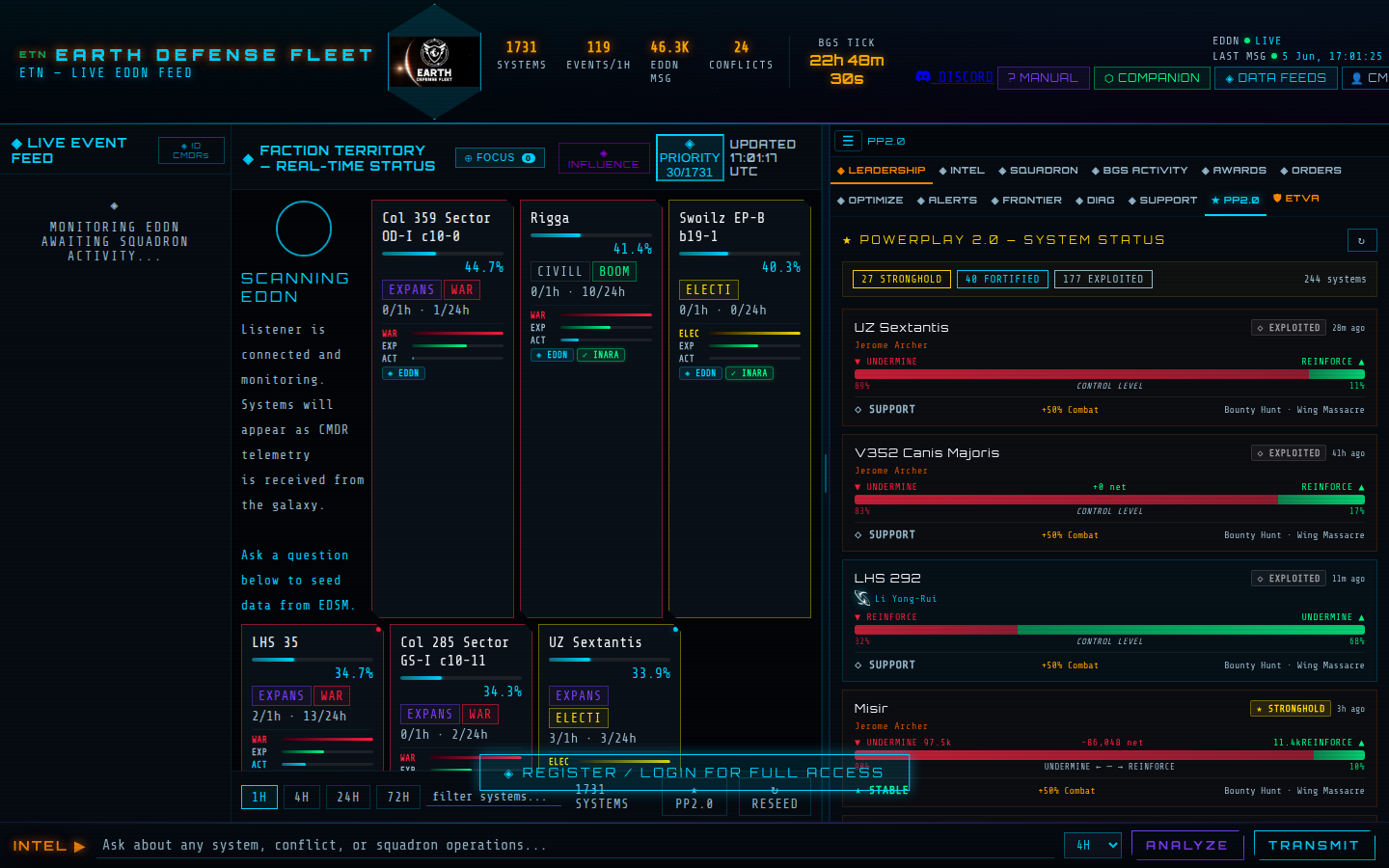
The PP2.0 tab shows your squadron's Powerplay picture across all tracked systems. For this tab to show useful data your leader must have set a Pledged Power in Settings → Branding.
| Element | Meaning |
|---|---|
| System state badges | Stronghold / Fortified / Exploited / Acquisition / Contested / Home System — each has distinct strategic implications |
| Steadfastness bar | How deeply your Power controls the system. 0 = contested, 100 = fully entrenched. Think of it as loyalty. |
| Steadfastness trend ↑↓→ | 6-hour rolling trend — rising means you're gaining ground, falling means you're losing it. The delta shows exact point change. |
| Tug-of-War bar | In Contested systems, shows the balance between your Power and the opponent. Below 40% triggers a Discord alert if configured. |
PP States Explained
| State | Meaning | Priority |
|---|---|---|
| Stronghold | Your Power fully controls this system | Maintain — but don't ignore rivals |
| Fortified | Well-established control — somewhat vulnerable | Continue reinforcing to reach Stronghold |
| Exploited | Nominal control, could change | Watch — reinforce if Steadfastness falls |
| Acquisition | Your Power is actively taking this system | Push now — Acquisition is time-limited |
| Contested | Another Power is competing for control | Highest priority — defend or contest |
Frontier (cAPI) Tab
Requires authenticated Frontier accounts. CMDRs who log in using Login with Frontier appear here with live data updated every ~3 minutes.
| Section | What it shows |
|---|---|
| CMDR Status | Live location, ship, docked status, and current system for all authenticated squadron members |
| Market Intel | Commodity prices at stations where your members are currently docked |
| Fleet Carriers | Fleet carriers owned by squadron members — name, callsign, current system, and scheduled jump if any |
Diagnostics Tab
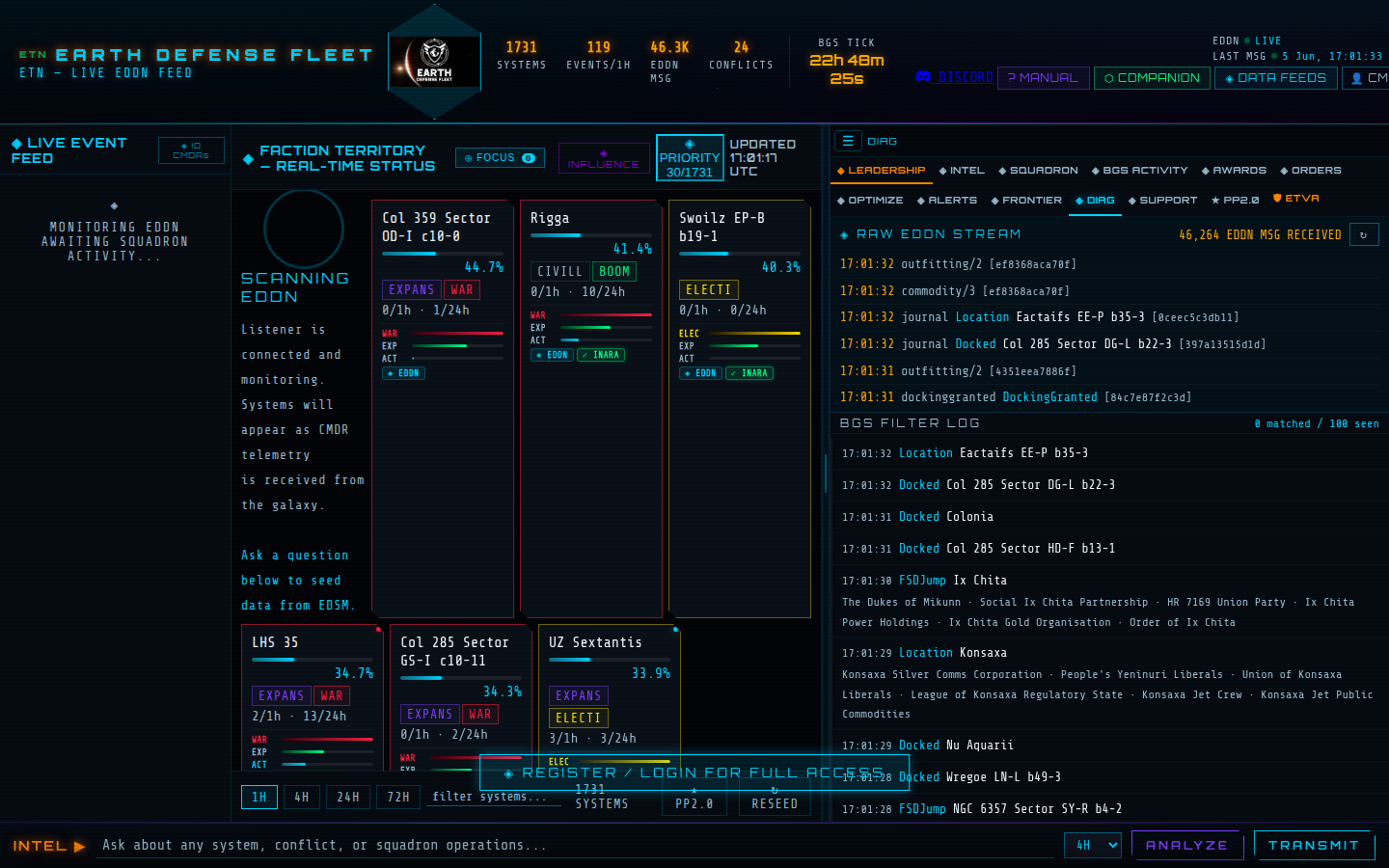
The Diag tab is your transparency window — it shows what the EDDN stream is actually delivering and how the BGS filter is classifying events. Use it when you suspect data isn't flowing or when a system's influence hasn't updated.
| Section | What it shows |
|---|---|
| Raw EDDN Stream | Last 20 raw EDDN messages with schema, event type, and system. Confirms the connection is alive. |
| BGS Filter Log | Which events matched your faction's filter (green border = match, amber = near-miss, grey = skip). Match count shown in header. |
Support Tab
Submit a ticket to the ETN platform administrators for technical issues, account problems, or feature requests. Requires a logged-in CMDR account.
- Click + NEW TICKET
- Enter a clear subject and a detailed description of the issue
- Click SUBMIT TICKET
Once submitted, the ticket thread appears in your list. You can reply, and admins can respond and change the ticket status. Click ✓ MARK RESOLVED once the issue is fixed.
AI Query Engine
The bottom bar is your primary AI interface. The portal runs AI from whichever provider key is configured (Groq, Gemini, OpenRouter, or Mistral) — it falls through providers automatically if one is rate-limited.
ANALYZE vs TRANSMIT
| Button | What it does | When to use |
|---|---|---|
| ANALYZE | Runs a focused analysis of the currently selected system using live EDDN data from the time window selected (1H/4H/24H/72H) | When you've clicked a system card and want a deep-dive on what's happening there right now |
| TRANSMIT | Sends your typed question to the AI as a general query against your squadron's full system database | Open-ended questions: briefings, strategic questions, "what should I do today?" |
Example Queries That Work Well
| Query | What you get |
|---|---|
| Give me an executive briefing on our squadron operations right now — all systems, conflicts, and priorities | Full operational report: all systems ranked by urgency, active conflicts, retreat risks, and recommended immediate actions |
| Which of our systems are in active wars or elections right now? | Conflict status report with day counts, estimated win/loss probability, and what actions help most |
| Which of our systems are at retreat risk (below 10% influence)? | Ranked retreat risk list with recommended remediation actions |
| Give me a briefing on [System Name] | Full intel on a specific system: influence, states, rivals, recommended actions |
| Analyze conflict situation in [System Name] | Detailed war/election breakdown for a single system |
Time Window
The selector next to the query bar (1H / 4H / 24H / 72H) controls how much EDDN history the AI has access to when formulating its response. For strategic briefings use 24H — captures a full BGS cycle. For real-time threat analysis use 4H.
Suggested Strategy
Available from the ⬡ STRATEGY option in the Leader menu. This generates a comprehensive AI strategy brief for your entire squadron: which systems need the most attention, which conflicts to focus on, which systems are at expansion or retreat threshold, and a clear action plan with system names and numbers.
The strategy brief is displayed in the Intel tab and can be referred to throughout the session. It uses all live data for all your tracked systems — the more data flowing in via EDDN and the companion app, the more accurate the strategy.
BGS Optimizer
The Optimize tab generates a personal action plan for a specific CMDR based on their activity profile and the current state of your systems. See the Optimize Tab section above for the step-by-step process.
The output ranks actions by BGS efficiency — missions in a Boom system are worth more BGS than the same missions in a non-Boom system, and the optimizer knows this. It also cross-references your CMDR's preferred activity type (if you typically run missions, it won't tell you to grind bounties unless that's the only option).
The optimizer also accounts for BGS daily caps and diminishing returns. BGS mechanics have hard limits on how much a single CMDR's activity can move influence in one system per tick — the optimizer recognises when a system has been saturated and redirects you to where your effort is still effective. Cap and diminishing-return awareness is the primary design goal of the optimizer: stopping squadrons from wasting sorties in already-maxed systems while systems elsewhere go unworked.
Leadership Tab
The Leadership tab is the squadron command centre. It requires the leadership cipher to access. Once authenticated, the session persists for 24 hours in that browser.
What Leaders Can Do Here
| Section | Function |
|---|---|
| Squadron overview | Faction name, system count, EDDN filter stats, last tick confirmation |
| CMDR Roster | Add/remove registered CMDRs, assign roles (Member / Senior Commander / Officer), reset passwords, view last-login times |
| Rival anomalies | Automatically detected unusual patterns in rival faction activity across your systems |
| Manual System Seed | Add a specific system to your tracking grid manually — useful for systems your faction hasn't been detected in yet via EDDN |
| Remove Systems | Remove any system from tracking — for colonies your faction has abandoned that the auto-prune can't touch |
| Leadership tour | Step-by-step guided tour of the Leadership tab for new leaders |
Leader Menu
The LEADER ☰ hamburger button in the header opens the leader action dropdown. It's only visible after cipher authentication.
| Option | What it does |
|---|---|
| ⬡ STRATEGY | Runs the AI squadron strategy brief — full operational situation report with prioritised action plan |
| 📨 DISPATCH | Opens the Mandate Dispatch modal — send a message to all registered CMDRs or a specific individual. Recipients see the message in their portal Inbox. |
| ◈ RIVALS | Opens the Rival Monitor (when configured) |
| ★ PP COMMAND | Opens the Powerplay Command window — full PP system-by-system management with recommended actions per system |
| ⚙ SETTINGS | Opens the Settings modal — faction filter, branding, AI keys, Discord integration |
| ⚠ EMERGENCY SHUTDOWN | Immediately hibernates your squadron's data feed. No new EDDN events will be processed until you re-activate. Use during off-season or when you need to pause tracking. |
Rival Monitor
The Rival Monitor opens as a fullscreen overlay showing detailed intelligence on a rival faction — their influence across all systems they share with you, recent trends, state changes, and CMDR activity correlated to their systems.
- Open the Leader menu → ◈ RIVALS
- Type the rival faction's exact name in the search field
- Click SCAN
Each rival faction card shows: current influence %, trend direction, active states, estimated CMDR traffic, and when they were last seen active. Use this before planning an offensive campaign to assess how entrenched a rival is.
Mandate Dispatch
Leaders can send messages directly to their squadron's registered CMDRs via the portal inbox. Open the 📨 DISPATCH option from the Leader menu.
Messages can be sent to all registered CMDRs simultaneously or targeted at a specific CMDR. Recipients see an orange unread badge on their CMDR Account button and the message appears in their Inbox when they open their profile.
Companion App
The companion app runs alongside Elite Dangerous on your PC and streams your journal data to the portal in real-time. It's the primary way your BGS activity appears on the portal without manual uploads.
Installing the Companion
- Click ⬡ COMPANION in the portal header
- Download the Windows installer (
.exe) or Linux package - Run the installer — no configuration needed; it finds your journal folder automatically
- The companion creates a system tray icon. It connects to the portal using a unique key displayed in the companion setup screen.
node companion.js in a terminal. Requires Node.js 18+. No npm install needed — all dependencies are bundled.
What the Companion Sends
The companion streams: FSD jumps, docking/undocking, mission accepted/completed/failed, bounty redemptions, combat bond redemptions, market transactions, exploration data submissions, and Powerplay events. All of this drives the BGS Activity log, medal awards, and the BGS Intel tally table.
BGS-Tally Integration
BGS-Tally is a popular EDMC plugin that tracks BGS activity. The ETN portal has a native integration that accepts tally data directly from the plugin.
Setting Up BGS-Tally
- In ETN, go to ⬡ COMPANION → BGS TALLY INTEGRATION section
- Copy the BGS-Tally API endpoint URL and your API key
- In EDMC, open BGS-Tally settings and enable the "Send to URL" option
- Paste the endpoint URL and API key
Once connected, BGS-Tally submissions appear in the Squadron → BGS Intel table, and your CMDR's tally data flows automatically at the end of each session.
Discord Bot & Integration
The ETN Discord bot can post tick reports, live alerts, and respond to slash commands directly in your squadron's Discord server. One bot instance serves all tenants — it routes each command and alert to the correct squadron by matching your Discord server's Guild ID against its registered tenant list. This mapping is set when you save your Guild ID in Settings → Discord. If the Guild ID is missing or wrong, slash commands will return no response and webhook alerts won't fire — always confirm the Guild ID is saved correctly after setup.
Setting Up Discord
- In Settings (Leader → ⚙ SETTINGS → DISCORD tab), find the bot invite URL and click INVITE BOT
- Enter your Discord Server (Guild) ID — right-click your server name in Discord (with Developer Mode on) → Copy Server ID
- Create a webhook in the Discord channel you want alerts in: Channel Settings → Integrations → Webhooks → New Webhook → Copy URL
- Paste the webhook URL into the Alert Webhook URL field
- Click ◈ SAVE DISCORD CONFIG
Slash Commands
| Command | What it returns |
|---|---|
/bgs focus | Your focus systems with live influence bars |
/bgs system <name> | Full live intel for a specific system |
/bgs radar <system> <window> | Pilot activity and opposition radar for a system over a time window |
/bgs activity | Last 8 CMDR activity log entries |
/bgs awards | Top 10 commanders by medal count |
/bgs ask <question> | AI strategy query — 5 free uses per server per day |
/bgs alert add <system> <type> | Create a threshold alert that posts to the webhook when triggered |
/bgs alert list | List all active bot-managed alert rules |
Notification Types
In the Discord settings, you can fine-tune which events post to your webhook. Categories:
| Category | Notifications | Default |
|---|---|---|
| BGS | Tick confirmation, surge/drop anomaly, retreat risk, expansion state, new faction in system, bot threshold alerts | ON for most |
| Powerplay | PP tick confirmation, RF/UM mid-cycle changes | ON |
| PP Threats | Tug-of-war losing (<40%), PP pledge change/defection | Mixed — ToW ON, pledge OFF |
| Live Intel HIGH VOLUME | Rival CMDR in PP space, CMDR FSD jump in your space, CMDR identity newly resolved, crime committed | OFF — enable only in dedicated channels |
CMDR Account & Personalisation
Click 👤 CMDR LOGIN in the header to open the account modal.
Registration
Register with your CMDR name (3+ characters) and a password (6+ characters). Your CMDR name is how you appear in the BGS Intel table, activity log, and awards. Use your exact in-game CMDR name for accurate cross-referencing with your journal submissions.
Color Themes
In your profile (Profile tab in the account modal), you can set custom colours for Primary, Accent, Highlight, and Panel Background. Five presets are available: DEFAULT, AMBER, RED, PURPLE, WHITE. Changes apply immediately to your session and persist across logins.
Display Size
Four text sizes: SMALL (13px), DEFAULT (15px), LARGE (17px), X-LARGE (19px). All portal text scales uniformly — if the interface feels cramped on a small monitor, bump to SMALL.
Interface Sounds
The portal plays audio cues for tick events, alert triggers, and AI response ready. Adjust the volume slider in your profile — set to 0 to mute all sounds.
Anchor System
Set a personal home base system. Every hex card shows a small distance badge in light orange measuring light-years from your anchor — useful for planning your session's route.
Custom Views
Save up to 3 personalised layouts. Each custom view stores which panels and right-panel tabs are visible. Create a "Combat Only" view that shows just Intel and Alerts, or a "BGS Overview" view that defaults to the Influence Board. Switch between views via the VIEW: bar above the tabs (appears once you create your first view).
Settings (Leader Only)
Open via the ⚙ SETTINGS option in the Leader menu. Four tabs:
Faction Filter
The core configuration — your faction name, Inara squadron name, Inara squadron ID, Inara minor faction ID, and PMF HQ system. Also shows live filter stats (how many EDDN events have matched your faction name since startup). If your system count is 0, check this first.
Branding
Set your squadron's initials (displayed in the header hex), primary/accent/highlight colours, and upload a logo (PNG/JPG/WebP — auto-resized to 512px). The logo replaces the initials in the hex badge. Also where you set your Pledged Power to unlock PP2.0 action recommendations on hex cards.
AI Keys
Configure API keys for the AI providers. Groq is recommended (free, fast, generous quota). You only need one key — the portal automatically falls through providers if one is rate-limited (Groq → Gemini → OpenRouter → Mistral). If no key is configured at all, a shared community trial key is used as a fallback with a 5-minute cooldown between uses. Keys are stored server-side — never in the browser.
Getting a Free Groq Key
- Go to console.groq.com → Sign Up (free, use Google or GitHub)
- Click API Keys in the left sidebar → Create API Key
- Give it any name (e.g. "Elite BGS") and copy the key — starts with
gsk_ - Paste in Settings → AI Keys → GROQ API KEY → Save
Discord
All Discord configuration: bot invite URL, server Guild ID, alert webhook URL, leader Discord user ID, authorised lockdown users, command access control, webhook alert type (BGS / PP / Both), and all notification preference toggles. See the Discord section above for full detail.
Daily Workflow — Best Practices
A recommended daily session flow for leaders and active squadron members:
Before the Tick (morning)
- Open the portal and check the BGS Tick Clock — plan your session around the tick window
- Check the BGS Intel table (Squadron → BGS Intel) — see which systems have received work this cycle and which haven't
- Run the AI briefing: type "Give me a full executive briefing on our squadron operations right now" in the query bar → TRANSMIT
- Check the Alerts tab for any triggered rules overnight — especially retreat risk and conflict detection
- Check the Priority grid (◈ PRIORITY button) for the top critical systems today
During the Session
- Keep the companion app running — this is what feeds real-time activity to the portal and earns your CMDRs medals
- Monitor the BGS Activity tab — you can see your own events flowing in and confirm the portal is tracking you
- When entering a contested system, click the hex card and run ANALYZE for the latest situation report
- Use the Optimize tab to get a personalised action plan if you're unsure where to spend your time
After the Tick
- The tick should cascade through your system cards — influence values update, state tags change
- Run a post-tick briefing: "What changed at the tick? Which systems gained or lost influence?"
- Update system objectives in the Intel view to reflect the new state
- If Discord is configured, a tick confirmation post should appear in your webhook channel automatically
Tips & Tricks
Power User Shortcuts
| Action | How to do it |
|---|---|
| Copy system name | Click the system name text on any hex card |
| Pop out a tab | Right-click any tab button → Open in new window or new tab |
| Resize right panel | Drag the 8px handle between center and right panel |
| Jump to a system in Intel | Click any event in the Live Feed, or click a system card |
| Collapse tab bar | Click the ☰ hamburger at the top of the tab bar — saves vertical space |
| Open EDGIS map | From any system Intel view, click ⬡ EDGIS MAP for 3D stellar cartography |
| Reduce CPU load during play | Enable Game Mode (controller icon in header) — pauses animations, slows refresh. Alerts still fire. |
| Quick system filter | Type in the "filter systems…" box in the time bar — instant results, no Enter needed |
AI Query Tips
- The AI has full access to all your live system data — be specific. Name the system. Name the faction. Say what you want.
- Use 24H window for strategic questions — it captures a full tick cycle
- Use 4H window when asking about real-time threats — more current, less historical noise
- The ANALYZE button (not TRANSMIT) is the fastest path to a system-specific brief — click the card first, then ANALYZE
- Quick preset buttons in the Intel tab are pre-optimised — use them before typing your own query
- If a response seems incomplete or truncated, try reducing scope: ask about one system rather than all of them
Data Quality
- EDDN data is only as good as the CMDRs reporting it — a system with no EDDN badge may simply not have had a CMDR dock or hyperspace-jump nearby recently
- The EDDN badge on a hex card is the gold standard. If only EDSM or Spansh badges appear, the data may be hours or days old
- If influence hasn't updated after the tick, the system may not have been visited by an EDDN-uploading CMDR yet. Send a squadron member there to dock and trigger an update.
- For conflict data to be accurate, at least one CMDR needs to have been in system after the new conflict started — the portal can't infer conflict scores from EDDN alone
Mobile Usage
- The portal auto-detects narrow screens and switches to mobile layout. You can also toggle manually with SWITCH VIEW.
- Mobile shows a bottom nav bar: Systems / Intel / Squadron / Activity / More
- The Live Feed is hidden on mobile by default — access it via the LIVE FEED button in the More drawer
- All AI query features work on mobile — the query bar appears at the bottom